Structure Preservation
Extracts and preserves document structure including sections, headings, and hierarchical organization for rich context understanding.
Table Extraction
Advanced table detection and extraction with Markdown formatting, preserving cell structure and relationships.
Hybrid Search
Combines semantic, keyword (BM25), and hybrid search with cross-encoder reranking for optimal retrieval.
Agentic RAG
LLM-powered agent that automatically detects and fetches referenced tables and figures for complete answers.
Production Ready
Built for scale with modular design, comprehensive error handling, and flexible configuration options.
Easy Integration
Simple API with convenience functions for quick integration. Works with Anthropic, OpenAI, and more.
01 What is Tablemind?
A comprehensive document intelligence library for RAG applications
🎯 Purpose
Tablemind is a Python library that helps you build Retrieval-Augmented Generation (RAG) applications. It handles the entire pipeline from document parsing to intelligent query answering, with special focus on preserving document structure, extracting tables and figures, and providing accurate source citations.
🔄 Workflow
1. Parse
Extract structure, tables, figures from PDF/MD/HTML/DOCX
2. Ingest
Chunk, embed, store in vector database (Qdrant)
3. Retrieve
Vector search + cross-encoder reranking
4. Answer
LLM generates answer with source citations
🏗️ Architecture
The library is organized into three core modules:
docling_parser.py
Multi-format document parsing (PDF, Markdown, HTML, DOCX, TXT) with table/figure extraction and structure preservation
rag_ingestion.py
Document ingestion pipeline with chunking, embedding generation, and vector database storage (Qdrant)
rag_library.py
RAG query system with vector search, reranking, agentic table/figure fetching, and LLM answer generation
Key Differentiators
✓ Table-First Design
Tables are extracted as complete Markdown (not chunked), with special retrieval prioritization and agentic fetching
✓ Semantic Context Authority
Document structure and semantic references are preserved, enabling accurate cross-section table discovery
✓ Multi-Format Support
Parse PDF, Markdown, HTML, DOCX, and text files with a unified API and automatic format detection
✓ Production Ready
Incremental updates, change detection, error handling, and comprehensive configuration options
Use Cases
Research Paper Q&A
Query academic papers with accurate table/figure citations
Data Analysis
Extract and compare metrics from reports
Document Search
Semantic search across large document collections
Knowledge Base
Build AI assistants with domain-specific knowledge
02 Installation
Get up and running in seconds with pip
Quick Install
pip install tablemindOr install from source for development:
git clone https://github.com/ngstcf/tablemind.git
cd tablemind
pip install -e .
03 Library Modules
Three powerful modules for complete document intelligence
docling_parser.py
Multi-Format Document Parsing
- PDF: Full Docling support with OCR option
- Markdown: Native Docling support (.md, .markdown)
- HTML: Native Docling support (.html, .htm)
- DOCX: Native Docling support (.docx)
- Text: Custom parser with structure extraction
- Extract tables as Markdown
- Identify figures and captions
- Preserve section hierarchy
- Get LLM-ready context
- Batch directory processing (recursive)
- Export to JSON/dict
rag_ingestion.py
Document Ingestion for RAG
- Vector database integration (Qdrant)
- Automatic chunking with merge
- Embedding generation
- Metadata extraction
- Change detection (skip unchanged)
- Batch ingestion
- Custom configurations
rag_library.py
RAG Query System
- Vector similarity search
- Cross-encoder reranking
- LLM answer generation
- Agentic table/figure fetching
- Table-prioritized retrieval
- Query filtering
- Multi-LLM support
04 Quick Start
Get results in minutes with these simple steps
Parse Your Documents
Extract structured data including tables, figures, and sections from PDF, Markdown, HTML, DOCX, or text files.
from docling_parser import parse_document

# Parse any supported format (auto-detected)
doc = parse_document("research_paper.pdf")
doc = parse_document("README.md")
doc = parse_document("report.html")
doc = parse_document("document.docx")
doc = parse_document("notes.txt")

# Access extracted data
print(f"Format: {doc.metadata.get('format')}")
print(f"Tables: {len(doc.tables)}")
print(f"Figures: {len(doc.figures)}")
print(f"Sections: {len(doc.sections)}")Ingest into Vector Database
Chunk, embed, and store your documents for fast semantic retrieval.
from rag_ingestion import ingest_document, ingest_documents

# Ingest a single document (any format)
result = ingest_document(
    "research_paper.pdf",
    collection_name="my_documents",
    db_path="./qdrant_db"
)

# Or ingest entire directory recursively
results = ingest_documents(
    directory="./docs",
    collection_name="my_documents",
    recursive=True
)

print(f"Status: {result['status']}")
print(f"Chunks indexed: {result['chunks_indexed']}")Query with RAG
Ask questions and get accurate answers with source citations and agentic table fetching.
from rag_library import query_rag

# Query your documents
result = query_rag(
    "What are the main findings from the ablation study?",
    collection_name="my_documents",
    db_path="./qdrant_db",
    retrieve_n=50,
    rerank_top_k=10,
    agentic=True
)

print(f"Answer: {result['answer']}")
05 Incremental Updates
Smart change detection for efficient document reindexing
How It Works
The ingestion system automatically detects file changes using SHA256 content hashing. When you ingest documents,
it calculates a hash of each file and stores it as the doc_id. On subsequent ingestions, the system
checks if a document with that hash already exists in the vector database and skips re-indexing if unchanged.
Key Features
SHA256 Content Hashing
Each document is hashed based on its binary content, creating a unique identifier that changes if any byte is modified.
Skip Unchanged Files
Documents already in the collection are automatically skipped, saving processing time and API costs.
Force Re-index
Use force=True to delete old chunks and re-index a document from scratch.
Progress Tracking
Get detailed status for each file including skipped, success, and chunks indexed.
Automatic File Watching
Monitor directories for changes and automatically reindex when files are added, modified, or deleted.
Event Callbacks
Register callbacks to be notified when files are added, modified, or deleted from the collection.
Usage Examples
Ingest Only New/Changed Documents
By default, only documents that haven't been indexed before will be processed.
from rag_ingestion import ingest_pdfs

# Only ingest new/changed documents (default)
results = ingest_pdfs(
    directory="./pdfs",
    collection_name="my_documents"
)

for r in results:
    if r["status"] == "skipped":
        print(f"⏭️  Skipped: {r['file_path']}")
    elif r["status"] == "success":
print(f"✅ Indexed: {r['file_path']} ({r['chunks_indexed']} chunks)")Force Re-index All Documents
Delete existing chunks and re-process all documents from scratch.
# Force re-index all documents
results = ingest_pdfs(
    directory="./pdfs",
    collection_name="my_documents",
    force=True  # Delete old chunks and re-index
)

# Or force re-index a single file
from rag_ingestion import ingest_pdf
result = ingest_pdf(
    "updated_document.pdf",
    force=True
)Understanding the Status
Each ingestion result includes status information.
# Possible status values:
"success"     # Document was indexed successfully
"skipped"     # Document already indexed (unchanged)
"error"       # Error during ingestion

# Result structure:
{
    "status": "success",
    "file_path": "./pdfs/paper.pdf",
    "doc_id": "a3f5e9...",  # SHA256 hash
    "chunks_indexed": 42,
    "message": "Successfully indexed"
}Automatic File Watching
Monitor a directory for changes and automatically reindex when files are added, modified, or deleted.
from rag_ingestion import RAGIngestor, VectorDBConfig

ingestor = RAGIngestor(
    db_config=VectorDBConfig(
        collection_name="my_documents",
        path="./qdrant_db"
    )
)

# Start watching a directory
watcher = ingestor.watch(
    directory="./documents",
    pattern="*.pdf",
    debounce_interval=2.0,  # Wait 2s before processing
    check_interval=10.0     # Check every 10s
)

# Watcher runs in background, automatically detecting:
# - New files added ➕
# - Existing files deleted 🗑️
# - Previously indexed files modified 🔄

# Stop when done
watcher.stop()
File Watching with Callbacks
Register callbacks to be notified of file changes:
from rag_ingestion import RAGIngestor

ingestor = RAGIngestor()

def on_file_change(event_type, event_data):
    """Callback for file change events"""
    if event_type == "added":
        print(f"➕ New: {event_data['file_path']}")
        print(f"   Chunks: {event_data['chunks_indexed']}")
    elif event_type == "modified":
        print(f"🔄 Modified: {event_data['file_path']}")
    elif event_type == "deleted":
        print(f"🗑️  Deleted: {event_data['file_path']}")

watcher = ingestor.watch(
    "./documents",
    callback=on_file_change
)

# Or use context manager for automatic cleanup
with ingestor.watch("./documents"):
    import time
    time.sleep(300)  # Watch for 5 minutes
CLI Usage
# Ingest only new documents (default)
python -m rag_ingestion ./pdfs --pattern "*.pdf"

# Force re-index all documents
python -m rag_ingestion ./pdfs --pattern "*.pdf" --force

# Watch directory for changes (automatic reindexing)
python -m rag_ingestion ./pdfs --watch

# Watch with custom intervals
python -m rag_ingestion ./pdfs --watch --check-interval 10 --debounce 2

# Watch with verbose output
python -m rag_ingestion ./pdfs --watch --verbose

# Use custom collection
python -m rag_ingestion ./pdfs --collection my_docs --watch
Understanding Watch Parameters
📊 Debounce Interval
The --debounce parameter defines how long to wait (in seconds) after detecting a file change before processing it. This prevents redundant reindexing when files are being rapidly modified.
Example: If you save a PDF file that triggers multiple filesystem events, the watcher waits 2 seconds (with --debounce 2) after the last change before reindexing. This ensures only the final version is processed.
🔍 Check Interval
The --check-interval parameter defines how frequently (in seconds) the watcher scans the directory for changes. Lower values = faster detection but higher CPU usage.
📁 Default Collection
When --collection is not specified, the system uses:
- The
QDRANT_COLLECTION_NAMEenvironment variable (if set) - Falls back to
my_documentsas the default collection name
Tip: Set QDRANT_COLLECTION_NAME in your .env file to avoid specifying --collection for every command.
⚙️ Recommended Settings
| Use Case | Check Interval | Debounce |
|---|---|---|
| Active development | 2-5 seconds |
1-2 seconds |
| Production/low-load | 10-30 seconds |
2-5 seconds |
| Batch processing | 60+ seconds |
5-10 seconds |
💡 Best Practices
- Run incremental ingestion regularly to add new documents without reprocessing existing ones
- Use
force=Trueonly when documents have been updated or you need to refresh embeddings - The SHA256 hash is based on file content, so renaming a file won't trigger re-indexing
- Check the
statusfield in results to understand what was processed - Use file watching for automatic reindexing in production environments
- Adjust
debounce_intervalbased on how quickly files are typically modified - Set
check_intervalappropriately to balance responsiveness and system load
06 Large-Context LLM Integration
Pass parsed documents directly to LLMs without chunking or vector databases
Get Document Context for LLM
Parse a PDF and get LLM-ready context with all tables, figures, and sections preserved.
from docling_parser import get_llm_context

# Get full document context suitable for large-context LLMs
# Parameters:
# - include_tables: Adds tables as Markdown with full structure (headers, rows, columns)
# - include_figures: Adds figure captions (not the images themselves)
# - table_numbers: Optional list to include specific tables only (e.g., [1, 3, 5])
context = get_llm_context(
    "research_paper.pdf",
    include_tables=True,
    include_figures=True
)

print(f"Context length: {len(context)} characters")Query with OpenAI
IMPORTANT: The prompt must explicitly instruct the LLM to output tables in markdown format. Without proper instructions, LLMs will summarize tables into bullet points.
from openai import OpenAI
from docling_parser import get_llm_context

# 1. Get full document context with tables and figures
context = get_llm_context(
    "research_paper.pdf",
    include_tables=True,   # Include tables as Markdown
    include_figures=True   # Include figure captions
)

# 2. Initialize OpenAI client
client = OpenAI()

# 3. CRITICAL: Include explicit table presentation instructions in prompt
table_prompt = """
Structure your response as follows:
1. First: Provide your analysis and answer to the question citing specific sources from the context.
2. Then: If any tables support your answer, reproduce those complete tables in markdown format

For non-table content, provide a detailed answer citing specific sources from the context.
"""

response = client.chat.completions.create(
    model="gpt-4o",  # 128K context window
    messages=[{
        "role": "user",
        "content": f"""Document:

{context}

{table_prompt}

Question: What are the key findings from the ablation study?
"""
    }]
)

print(response.choices[0].message.content)
⚠️ Why Prompt Instructions Matter
LLMs naturally tend to summarize tabular data into bullet points or prose. To get accurate table reproduction, you must explicitly instruct them to:
- Output markdown tables - Tell the LLM to create markdown table syntax with | separators
- Include ALL data - Specify that all rows, columns, and values must be included
- Preserve precision - Instruct not to round numerical values
Without these instructions: LLM output → "The table shows GPT-4 scored 0.85 while Claude scored 0.82."
With these instructions: LLM output → Full markdown table with all variants and metrics preserved
Advanced Options
from docling_parser import get_llm_context

# Include only specific tables
context = get_llm_context(
    "research_paper.pdf",
    include_tables=True,
    table_numbers=[1, 3, 5]  # Only tables 1, 3, and 5
)

# Exclude figures
context = get_llm_context(
    "research_paper.pdf",
    include_tables=True,
    include_figures=False  # No figure captions
)
When to Use Direct LLM Context
Single Document Analysis
Perfect for analyzing one document without needing a vector database.
Table-Heavy Documents
Preserves all table data in Markdown format for accurate analysis.
Detailed Review
When you need comprehensive understanding of the entire document.
Fast Prototyping
No setup required - just parse and send to your LLM of choice.
07 Multi-Format Support
Parse PDF, Markdown, and text files with a unified API
Supported Formats
The docling_parser module supports multiple document formats with automatic format detection based on file extension.
PDF (.pdf)
Full Docling support with OCR option for scanned documents. Preserves tables, figures, and sections.
Markdown (.md, .markdown)
Native Docling support. Extracts tables, figures, and preserves document hierarchy.
HTML (.html, .htm)
Native Docling support. Parses web pages with structure, tables, and embedded content.
DOCX (.docx)
Native Docling support. Parses Word documents with formatting, tables, and sections.
Text (.txt)
Custom parser with markdown-style table and section extraction. Great for README and notes files.
Usage Examples
from docling_parser import parse_document

# Format is auto-detected from file extension
pdf_doc = parse_document("paper.pdf")
md_doc = parse_document("README.md")
html_doc = parse_document("report.html")
docx_doc = parse_document("document.docx")
txt_doc = parse_document("notes.txt")

# All return ParsedDocument with same structure
for doc in [pdf_doc, md_doc, html_doc, docx_doc, txt_doc]:
print(f"{doc.file_name}: {doc.metadata.get('format')}")from docling_parser import (
parse_pdf, parse_markdown, parse_html,
parse_docx, parse_text_file
)
# Use format-specific functions for clarity
pdf_doc = parse_pdf("paper.pdf")
md_doc = parse_markdown("README.md")
html_doc = parse_html("report.html")
docx_doc = parse_docx("document.docx")
txt_doc = parse_text_file("notes.txt")from docling_parser import parse_documents
# Parse all supported formats in a directory
docs = parse_documents("./docs", recursive=True)
for doc in docs:
print(f"{doc.file_name} ({doc.metadata.get('format')}): {len(doc.tables)} tables")Format Detection
The library automatically detects the format based on file extension:
| Extension | Format | Parser |
|---|---|---|
.pdf |
Docling with OCR option | |
.md, .markdown |
Markdown | Docling native |
.html, .htm |
HTML | Docling native |
.docx |
DOCX | Docling native |
.txt |
Text | Custom parser |
You can also selectively enable formats using the supported_formats parameter:
from docling_parser import DoclingParser

# Only enable PDF, Markdown, and HTML
parser = DoclingParser(supported_formats=["pdf", "markdown", "html"])
doc = parser.parse("paper.pdf")
08 Capabilities
Everything you need for production document intelligence
Smart Chunking
Merges related chunks while preserving document structure and context boundaries.
Table Prioritization
Boost retrieval of table chunks for data-heavy queries.
Cross-Encoder Rerank
Uses state-of-the-art reranking for highly relevant results.
Agentic Fetching
LLM agent detects missing references and fetches tables automatically.
Complete Table Extraction
Reproduces full tables with all rows and columns preserved intact.
Source Attribution
Every answer includes source citations with file names and headings.
Full Document Review
Comprehensive document-level analysis with hierarchical section summarization.
Auto Mode Detection
Automatically detects when to use standard RAG vs full document review.
09 Agentic RAG
Intelligent table and figure fetching using LLM-powered agent
What is Agentic RAG?
Agentic RAG is an intelligent agent that analyzes your question and the retrieved context to detect missing references to tables or figures. When the text mentions "Table 3" but Table 3 isn't included in the retrieved chunks, the agent automatically fetches it from the vector database.
How It Works
Initial Retrieval
System retrieves relevant chunks using vector similarity search based on your question.
LLM Analysis
An LLM analyzes the retrieved context to find explicit references (e.g., "see Table 3") to tables/figures that are NOT included.
Smart Fetching or Boosting
The agent either fetches missing tables/figures from the database OR boosts existing ones that were already retrieved but marked important.
Re-insertion Protection
Agentic chunks are protected from being filtered out by the reranker, ensuring critical data is always included in the final answer.
Key Concepts
Agentic Fetch
Tables/figures that were NOT in the initial retrieval and had to be fetched from the database. Marked with is_agentic_fetch: true.
Agentic Boost
Tables/figures that WERE already retrieved but the LLM agent identified as critically important. Marked with agentic_boosted: true.
Re-insertion
If the reranker filters out agentic chunks, they're automatically re-inserted with a high score to ensure inclusion.
Reference Detection
Detects explicit references like "Table 3", "see Figure 2", and contextual references like "the following table".
Example Output
🔍 Question: What are the main findings from the ablation study?

📚 Step 1: Retrieving top 30 chunks...
   Retrieved 30 chunks

🧠 Step 1.5: Agentic analysis...
   📊 Referenced but missing: Table 3
   ✅ Added 1 agenticly-fetched tables/figures
   ⬆️  Boosted 1 existing tables/figures

🎯 Step 2: Reranking to top 10 most relevant...
   🔄 Re-inserted agentic-boosted table 3 (excluded by reranker)

📝 Step 3: Generating answer...
When to Use Agentic RAG
✅ Enable When:
- Questions likely to reference specific tables/figures
- Analyzing research papers with data tables
- Comparative analysis requiring multiple data sources
- When accuracy is critical
⚡ Disable When:
- Simple factual questions
- General summaries
- Speed is more important than completeness
- Documents with no tables/figures
🧠 Autonomous Query Mode Selection
The agentic system also works together with autonomous query mode detection. When you set query_mode="auto" (the default), an LLM agent evaluates your question and automatically selects the optimal retrieval strategy:
- Specific queries → Fast semantic search with agentic table/figure fetching
- Document-level queries → Full-document review with hierarchical summarization
The agent provides explainable reasoning for its decision, included in the response metadata as agent_reasoning. This ensures you get both the right retrieval strategy and comprehensive table/figure coverage—all automatically.
11 Querying Tables and Figures
Best practices for retrieving tabular and visual data
Tables contain dense, structured data that's often critical for answering questions. However, they're often stored as separate chunks from the surrounding text, which can make them harder to retrieve with standard semantic search. This section explains how to effectively query tables and figures.
Understanding the Challenge
When you query a document, the system uses semantic search to find relevant chunks. However, tables pose unique challenges:
Semantic Mismatch
Table headers and data may not semantically match your question (e.g., asking "ablation results" but table contains numeric values).
Separate Chunks
Tables are often chunked separately from the text that references them, causing the reference to be retrieved but not the table.
Reranker Blindness
The reranker sees only a truncated preview of each chunk, so table data at the end gets missed. Use full-document review for comprehensive analysis.
Solution: prioritize_tables
Put table data at the beginning of chunks and boost table relevance scores during retrieval.
Essential: prioritize_tables Parameter
For best results when asking about tables, ALWAYS use prioritize_tables=True.
This parameter does four things:
- Doubles retrieval count: Fetches 2× more chunks to increase table inclusion probability
- Boosts table scores: Multiplies table chunk relevance scores by 3.0×
- Ensures table representation: Guarantees at least 50% of top results are tables (minimum 3 tables)
- Re-sorts results: Moves tables higher in the ranking before reranking
The RAG system automatically detects table-focused queries and enables
prioritize_tables. Detection keywords include: table, chart, graph, figure, data, result, finding, metric, performance, score, compare, ablation, baseline, experiment.
While auto-detection works for most cases, explicitly setting
prioritize_tables=True ensures best results for table queries, especially when using the library directly.
Example: Querying Tables
from rag_library import query_rag

# ✅ GOOD: Explicitly enable prioritize_tables
result = query_rag(
    question="What are the main findings from the ablation study?",
    prioritize_tables=True,  # Critical for table queries!
    retrieve_n=30,
    rerank_top_k=10,
    agentic=True,
    verbose=True
)

# ❌ BAD: Without prioritize_tables, tables may be missed
result = query_rag(
    question="What are the main findings from the ablation study?",
    # Missing prioritize_tables parameter!
    retrieve_n=30,
    rerank_top_k=10
)
CLI Usage for Table Queries
When using the tablemind CLI, always include the --prioritize-tables flag for table-related questions:
# Query with table prioritization
tablemind "What are the main findings from the ablation study?" --prioritize-tables -v

# Table-only query (excludes non-table chunks)
tablemind "Compare the performance metrics" --tables-only --prioritize-tables

# High retrieval for comprehensive table search
tablemind "Show me Table 3" --prioritize-tables --retrieve-n 50 --top-k 10
Advanced: Tables-Only Queries
For questions that ONLY require table data (no surrounding text), use include_tables_only=True:
from rag_library import RAGSystem, RAGConfig

config = RAGConfig()
rag = RAGSystem(config)

# Only search table chunks
result = rag.query(
    question="Compare all the performance metrics across tables",
    include_tables_only=True,
    prioritize_tables=True,
    retrieve_n=50,
    rerank_top_k=10
)
Combining with Agentic RAG
For comprehensive table queries, combine prioritize_tables with agentic=True:
- prioritize_tables=True: Increases chance of retrieving tables in initial search
- agentic=True: Detects missing table references (e.g., "see Table 3") and fetches them
- Result: Maximum table coverage for your question
Use this combination for best results:
prioritize_tables=True, agentic=True, retrieve_n=30 (or higher), rerank_top_k=10
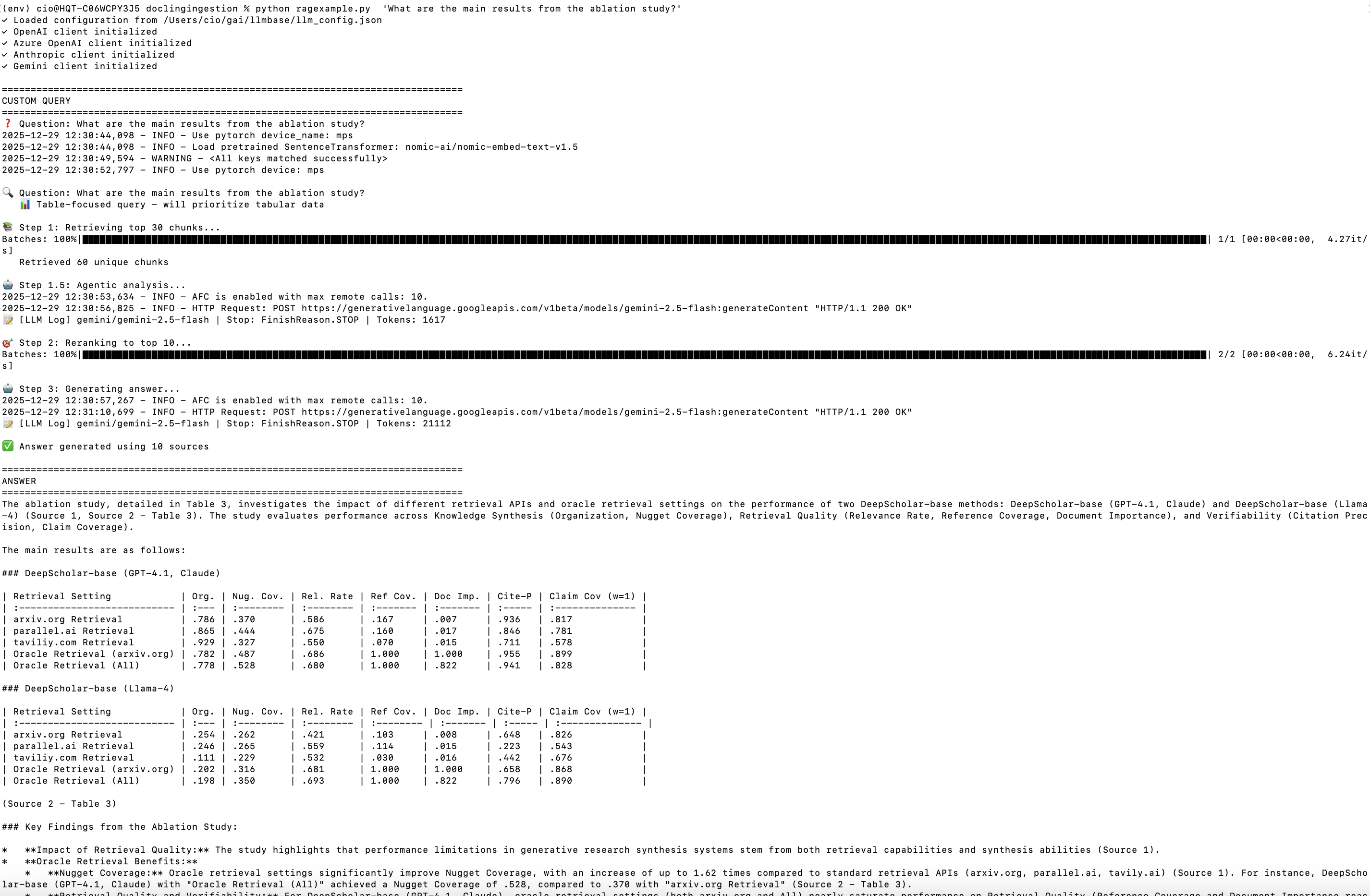
Example Output: Ablation Study Query
Below is an example RAG query output for the question "What are the main results from the ablation study?" from the research paper "DeepScholar-Bench: A Live Benchmark and Automated Evaluation for Generative Research Synthesis" (arXiv:2508.20033):
10 Query Modes
Agentic AI query classification for optimized retrieval strategies
What are Query Modes?
The RAG system uses an agentic AI approach to automatically classify your query and select the optimal retrieval strategy. An LLM agent evaluates your question's intent and context, then chooses between standard RAG (fast, focused) or full-document review (comprehensive). The agent provides reasoning for its decision, visible in response metadata.
Available Query Modes
Specific
Standard RAG retrieval for focused questions about specific facts, data points, or concepts. Uses vector search with configurable retrieval limits.
Table Reference
Auto-detected for queries mentioning tables, figures, or charts. Combines prioritized table retrieval with agentic fetching.
Full Document Review
Retrieves entire document in sequential order, organizes by sections, and performs hierarchical summarization for comprehensive analysis.
🧠 Agentic Query Classification
How Agentic Detection Works
The system uses an LLM agent to intelligently evaluate query intent:
- User submits query with
query_mode="auto"(default) - LLM agent evaluates the query's intent and context
- Agent chooses strategy:
- Standard RAG - Fast semantic retrieval for focused questions
- Full Document Review - Comprehensive analysis for document-level queries
- Agent provides reasoning for its decision (visible in response metadata)
- Users can override by manually specifying
query_mode
Benefits: No brittle keyword lists. Agent considers query context, not just surface-level patterns. Adapts automatically to new query types. Provides explainable decisions.
Full-Document Review Flow
Agentic Query Classification
An LLM agent analyzes your question's intent and context, then classifies it as "specific" or "full_review" with reasoning.
Sequential Document Retrieval
For full-review queries, all chunks are retrieved in document order (by page number and index), preserving the document's natural flow.
Section Organization
Chunks are grouped by document headings (Introduction, Methods, Results, etc.) to understand the paper's structure.
Hierarchical Summarization
Each section is summarized independently (2-3 sentences), then synthesized into a comprehensive document-level review.
Example: Agentic Query Detection
from rag_library import query_rag

# Query that triggers full-document review (agentic detection)
result = query_rag(
    question="How can I improve this paper's flow and clarity?",
    verbose=True
)

# Agent reasoning is included in response metadata
print(f"Query Mode: {result['query_mode']}")
print(f"Agent Reasoning: {result['agent_reasoning']}")

# Output:
# 🤖 Agent evaluating query type...
#    ✓ Decision: full_review
#    📝 Reasoning: Query asks for document-level assessment of flow and clarity
#
# 📄 Full-Document Review Mode
#    Question: How can I improve this paper's flow and clarity?
#
# 📚 Step 1: Retrieving all document chunks...
#    Retrieved 247 chunks from document
#
# 📋 Step 2: Organizing content by sections...
#    Found 8 sections
#
# 🔍 Step 3: Analyzing each section...
#
# 🤖 Step 4: Generating comprehensive review...
#
# Query Mode: full_review
# Agent Reasoning: Query asks for document-level assessment of flow and clarity
Manual Query Mode Selection
from rag_library import RAGSystem, RAGConfig

rag = RAGSystem()

# Force full-document review mode
result = rag.query(
    question="What are the key findings?",
    query_mode="full_review",  # Override auto-detection
    verbose=True
)

# Force specific mode (standard RAG)
result = rag.query(
    question="Review the structure",
    query_mode="specific",  # Use standard RAG instead
    verbose=True
)
When to Use Each Mode
🎯 Specific Mode
- Factual questions ("What is X?")
- Specific data point queries
- Concept explanations
- Targeted information retrieval
- Fast, focused responses
📊 Table Reference Mode
- Questions mentioning tables/figures
- Data comparison queries
- Performance metrics analysis
- Experimental results
- Ablation studies
📄 Full-Document Review
- Writing quality assessment
- Flow and structure analysis
- Comprehensive critiques
- Argument evaluation
- Overall document assessment
CLI Usage
# Auto-detect query mode (default)
python -m rag_library "How can I improve the writing?" -v

# Force specific mode
python -m rag_library "What are the findings?" --query-mode specific -v

# Force full-document review
python -m rag_library "Summarize the results" --query-mode full_review -v
12 Hybrid Search
Combining semantic and keyword search for optimal retrieval
What is Hybrid Search?
Hybrid search combines vector semantic search (which understands meaning) with keyword search (BM25) (which matches exact words). This gives you the best of both worlds: semantic understanding for conceptual queries and precise matching for specific terms.
Search Modes
Semantic Search (Default)
Uses vector embeddings to find conceptually similar content. Best for questions about meaning and concepts.
Keyword Search (BM25)
Matches exact words and phrases. Best for specific terms, part numbers, names, and precise queries.
Hybrid Search
Combines both approaches using weighted fusion. Configurable balance between semantic and keyword matching.
When to Use Each Mode
🧠 Semantic (search_mode="semantic")
- Conceptual questions ("What are the main findings?")
- Summarization tasks
- Comparative analysis
- Synonym-heavy queries
- Exploratory searches
🔑 Keyword (search_mode="keyword")
- Exact term matching ("part #12345")
- Proper names and acronyms
- Technical specifications
- Code snippets and identifiers
- Specific phrase searches
🔀 Hybrid (search_mode="hybrid")
- Mixed conceptual and specific queries
- When both meaning and terms matter
- Maximum retrieval coverage
- Unknown query type
- Production applications
Python API Usage
from rag_library import query_rag

# Default semantic search
result = query_rag(
    "What are the main findings?",
    search_mode="semantic"  # or omit for default
)

# Also works with RAGSystem
from rag_library import RAGSystem, RAGConfig
config = RAGConfig(search_mode="semantic")
rag = RAGSystem(config)
result = rag.query("Summarize the methodology")from rag_library import query_rag
# Exact keyword matching
result = query_rag(
"Model XGBoost-7B parameters",
search_mode="keyword",
verbose=True
)
# Best for specific terms, part numbers, names
result = query_rag(
"tensor parallelism",
search_mode="keyword"
)from rag_library import RAGSystem, RAGConfig
# Hybrid: 50% semantic, 50% keyword (default)
config = RAGConfig(
search_mode="hybrid",
hybrid_alpha=0.5
)
rag = RAGSystem(config)
result = rag.query("What is the accuracy of Model X?")
# Hybrid: 70% semantic, 30% keyword
config = RAGConfig(
search_mode="hybrid",
hybrid_alpha=0.7
)
rag = RAGSystem(config)
result = rag.query("Hyperparameter settings for bert-base")
# hybrid_alpha values:
# 0.0 = pure keyword (BM25)
# 0.5 = balanced (recommended default)
# 1.0 = pure semantic (vector)from rag_ingestion import reindex_documents, RAGIngestor, VectorDBConfig
# Convenience function - reindex all documents in a directory
result = reindex_documents("./docs")
print(f"Reindexed {result['indexed_count']} documents")
# Or use RAGIngestor directly for more control
ingestor = RAGIngestor(db_config=VectorDBConfig(collection_name="my_docs"))
result = ingestor.reindex_collection("./docs")
# With progress callback
def on_progress(message, current, total):
print(f"[{current}/{total}] {message}")
result = reindex_documents("./docs", progress_callback=on_progress)CLI Usage
# Semantic search (default)
tablemind "What are the main findings?"

# Keyword search (BM25)
tablemind "Model XGBoost-7B" --search-mode keyword

# Hybrid search with default balance (0.5)
tablemind "What is the accuracy?" --search-mode hybrid

# Hybrid search with custom balance
tablemind "Model parameters" --search-mode hybrid --hybrid-alpha 0.7

# Keyword search with table prioritization
tablemind "performance metrics" --search-mode keyword --prioritize-tables -v
Configuration via .env
# Search mode: semantic, keyword, or hybrid
SEARCH_MODE=hybrid

# Hybrid balance (0.0=keyword, 1.0=semantic, 0.5=balanced)
HYBRID_ALPHA=0.5

# Collection and database
QDRANT_COLLECTION_NAME=my_documents
QDRANT_PATH=./qdrant_db
How Hybrid Fusion Works
The hybrid search uses weighted linear combination to merge results from both search methods:
final_score = alpha × semantic_score + (1 - alpha) × normalized_keyword_score
- Step 1: Run semantic vector search (fetches 2× results for fusion)
- Step 2: Run keyword BM25 search (fetches 2× results for fusion)
- Step 3: Normalize keyword scores to [0, 1] range
- Step 4: Combine scores using the alpha weight
- Step 5: Return top-k results by combined score
Understanding hybrid_alpha
The hybrid_alpha parameter controls the balance between semantic and keyword search. It's a value between 0.0 and 1.0:
🔑 Low Alpha (0.0 - 0.3)
Keyword-Focused
- 0.0 = Pure keyword (BM25)
- 0.3 = 70% keyword, 30% semantic
- Exact term matching prioritized
- Best for: Part numbers, IDs, technical specs, proper names
⚖️ Mid Alpha (0.4 - 0.6)
Balanced (Recommended)
- 0.5 = 50% keyword, 50% semantic (default)
- Equal weight to both methods
- Maximum coverage and recall
- Best for: General-purpose queries, production applications
🧠 High Alpha (0.7 - 1.0)
Semantic-Focused
- 0.7 = 30% keyword, 70% semantic
- 1.0 = Pure semantic (vector)
- Conceptual understanding prioritized
- Best for: Summaries, exploratory queries, abstract concepts
Choosing the Right Alpha Value
| Query Type | Recommended Alpha | Example Queries |
|---|---|---|
| Exact Term Matching | 0.0 - 0.3 |
"part #12345", "XGBoost-7B", "tensor parallelism" |
| Mixed Queries | 0.4 - 0.6 (default: 0.5) |
"What is the accuracy of Model X?", "Show me bert-base settings" |
| Conceptual Questions | 0.7 - 1.0 |
"What are the main findings?", "Summarize the methodology" |
| Unknown/Variable | 0.5 |
Production applications with diverse queries |
💡 Best Practices
- Start with
alpha=0.5(balanced) for general use - Use
keywordmode (alpha=0.0) when exact terms are critical - Use
semanticmode (alpha=1.0) for conceptual queries - Adjust alpha based on your query patterns and results quality
- BM25 index is built on first keyword/hybrid search (may be slow initially)
- Combine with
prioritize_tables=Truefor table-heavy queries - Consider domain-specific tuning: technical docs may need lower alpha, research papers higher alpha
13 API Reference
Core classes and functions
docling_parser.py
| Class/Function | Description |
|---|---|
DoclingParser |
Main parser class for PDF, Markdown, HTML, DOCX, and text documents |
ParsedDocument |
Dataclass containing parsed document data |
parse_document(file_path) |
Parse any supported format (auto-detected) |
parse_pdf(file_path) |
Quick function to parse a single PDF |
parse_markdown(file_path) |
Quick function to parse a Markdown file |
parse_html(file_path) |
Quick function to parse an HTML file |
parse_docx(file_path) |
Quick function to parse a DOCX file |
parse_text_file(file_path) |
Quick function to parse a text file |
parse_documents(directory) |
Parse all documents in directory (recursive) |
get_llm_context(file_path) |
Get document context formatted for LLMs |
rag_ingestion.py
| Class/Function | Description |
|---|---|
RAGIngestor |
Main ingestion class for documents |
VectorDBConfig |
Configuration for vector database |
EmbeddingConfig |
Configuration for embedding models |
ingest_document(file_path) |
Ingest a single document (any format) |
ingest_pdf(file_path) |
Quick function to ingest a single PDF |
ingest_documents(directory) |
Batch ingest all documents (recursive) |
ingest_pdfs(directory) |
Batch ingest all PDFs in a directory |
rag_library.py
| Class/Function | Description |
|---|---|
RAGSystem |
Main RAG query system class with agentic AI capabilities |
RAGConfig |
Configuration for RAG system (models, database, LLM settings) |
query_rag(question, query_mode) |
Quick function to perform a RAG query with optional query mode |
RAGSystem.query(question, query_mode) |
Perform query with full options including agentic classification |
RAGSystem.retrieve() |
Retrieve chunks without LLM generation |
RAGSystem.query_full_document_review() |
Perform hierarchical full-document analysis |
🧠 Query Mode Parameter
The query_mode parameter controls query classification strategy:
| Value | Behavior |
|---|---|
"auto" or None |
Agentic LLM evaluates query and selects strategy (default) |
"specific" |
Force standard RAG (fast, focused retrieval) |
"table_reference" |
Force table-prioritized retrieval with agentic fetching |
"full_review" |
Force full-document hierarchical review |
Response Metadata: When using query_mode="auto", the response includes agent_reasoning field explaining the agent's decision.
14 Configuration
Environment variables for customization
The
.env file should be placed in your current working directory (where you run your scripts from).
The library uses load_dotenv() which automatically loads environment variables from .env in the current directory.
API keys (ANTHROPIC_API_KEY, OPENAI_API_KEY) are passed to the LLM service via environment variables.
# Qdrant Configuration
QDRANT_COLLECTION_NAME=my_documents
QDRANT_PATH=./qdrant_db

# Model Configuration
EMBEDDING_MODEL=sentence-transformers/all-MiniLM-L6-v2
RERANKER_MODEL=cross-encoder/ms-marco-MiniLM-L-6-v2

# LLM Configuration
LLM_PROVIDER=anthropic
LLM_MODEL=claude-sonnet-4-20250514
LLM_TEMPERATURE=0.7
LLM_MAX_TOKENS=2000

# API Keys
# Note: These keys are loaded from .env and passed to the LLM service
ANTHROPIC_API_KEY=your-api-key
OPENAI_API_KEY=your-api-key

# Chunking Configuration
MAX_TOKENS=4000
MERGE_PEERS=true
INCLUDE_STRUCTURE_CONTEXT=true
Chunking Configuration Options
These settings control how documents are split into chunks during ingestion:
MAX_TOKENS
Default: 4000
Maximum number of tokens per chunk. Larger chunks contain more context but may reduce retrieval precision. Smaller chunks provide more granular matching but may fragment related information.
- 2000-3000: More chunks, better for specific questions
- 4000 (default): Balanced approach
- 6000-8000: Fewer chunks, better for broad summaries
MERGE_PEERS
Default: true
Whether to merge adjacent "peer" chunks (chunks from the same section/heading) that are small enough to fit together within MAX_TOKENS.
When enabled (true):
- Related content stays together (better context)
- Fewer, more coherent chunks
- Reduced fragmentation of ideas
When disabled (false):
- Maximum granularity
- More chunks for precise matching
- Sections split into smaller pieces
Recommendation: Keep true for most RAG use cases. Only disable if you need maximum chunk granularity for very specific queries.
INCLUDE_STRUCTURE_CONTEXT
Default: true
Whether to prepend document structure (headings, section paths) to each chunk. This uses Docling's contextualize() method.
With structure context (true):
# 5.3 Understanding Opportunities for Improvement

## Ablation Study Results

The results show that our method achieved 95% accuracy...- LLMs understand document organization
- Better semantic retrieval (headings add context)
- Clearer source attribution
Without structure context (false):
The results show that our method achieved 95% accuracy...- Smaller chunks (no redundant headings)
- LLMs lose context about content location
- Worse retrieval for generic text
Recommendation: Always keep true for RAG. The structure context significantly improves both retrieval relevance and LLM comprehension of source material.
How Environment Variables Are Loaded
The library loads configuration in the following order:
rag_library.pycallsload_dotenv()on import- Environment variables are read from
.envfile in current working directory - Variables not found in
.envuse default values - Explicit parameters override
.envvalues
from rag_library import RAGConfig, RAGSystem

# .env values are used by default
config = RAGConfig()

# Or override specific values
config = RAGConfig(
    collection_name="custom_collection",
    temperature=0.3
    # Other values come from .env
)
15 CLI Commands
Command-line interface for quick operations
tablemind - Query Documents
The main CLI for querying your document collection with RAG. Uses agentic AI to automatically evaluate query intent and select the optimal retrieval strategy (standard RAG vs. full-document review). The agent provides reasoning for its decisions.
The CLI is built into
rag_library.py. Use one of these methods:
python rag_library.py "your question"python -m rag_library "your question"- Create an alias:
alias tablemind='python /path/to/rag_library.py'
# Run the CLI directly (uses agentic auto-detection by default)
python rag_library.py "What are the main findings?"

# Or as a module
python -m rag_library "What are the main findings?"

# Query with custom retrieval options
python rag_library.py "Compare table 3" --retrieve-n 50 --top-k 10

# Enable verbose output (shows agentic classification)
python rag_library.py "What datasets were used?" -v

# Force specific query mode
python rag_library.py "What are the findings?" --query-mode specific

# Force full-document review mode
python rag_library.py "Summarize the results" --query-mode full_review

# Table-only query with agentic fetching
python rag_library.py "What are the performance metrics?" --tables-only --prioritize-tables

# Query with all options
python rag_library.py "Analyze the results" \
  --retrieve-n 100 \
  --top-k 20 \
  --agentic \
  --prioritize-tables \
  --verbose
Command-Line Options
| Option | Default | Description |
|---|---|---|
-v, --verbose |
False |
Print detailed progress information |
--retrieve-n N |
20 |
Number of chunks to retrieve before reranking |
--top-k K |
5 |
Number of chunks to keep after reranking |
--query-mode MODE |
auto |
Query mode: auto (agentic), specific, full_review |
--agentic / --no-agentic |
True |
Enable/disable agentic table/figure fetching |
--tables-only |
False |
Only search table chunks |
--figures-only |
False |
Only search figure chunks |
--prioritize-tables |
False |
Boost table chunks in retrieval results |
--show-reasoning |
False |
Include LLM reasoning in response |
Other CLI Commands
# Run the example script
python ragexample.py

# Run specific examples
python ragexample.py --parse          # Parse PDF example
python ragexample.py --ingest         # Ingest documents example
python ragexample.py --query           # Query documents example
python ragexample.py "Your question"  # Custom query

# For custom query with options, edit ragexample.py or use rag_library.py directly:
python rag_library.py "Your question" --prioritize-tables -v
16 Web Interface
Interactive chat interface with dynamic document ingestion
What is the Web Interface?
The RAG system includes a Flask-based web interface that provides an interactive chat experience for querying your documents. It features real-time streaming responses, conversation history management, configurable retrieval options, and dynamic document ingestion.
Key Features
Interactive Chat
Real-time streaming responses with markdown rendering and code highlighting
Dynamic Upload
Upload and index documents while the server is running - no restart needed
File Watching
Automatic reindexing when documents in your library folder change
Configurable Options
Search modes, table prioritization, agentic mode, and table content display
Table Control
Toggle whether tables are shown in responses or just used for context
Conversation History
Full conversation context with automatic compaction to manage token limits
Starting the Web Interface
# Start the web server
python web_app.py

# The interface will be available at:
# http://localhost:5005
Document Management
The web interface supports two ways to add documents:
📤 Upload via UI
- Click "Upload Document" in the sidebar
- Supported: PDF, MD, HTML, DOCX, TXT
- Automatic parsing and indexing
- Progress tracking for ingestion
👀 Auto-Watch Folder
- Enable "File Watcher" to watch
./docsfolder - Automatically detects new/modified/deleted files
- Reindexes on changes with debouncing
- Configurable check intervals
Table Content Control
The "Show Tables in Response" checkbox controls how tables are displayed in LLM responses:
| Setting | Behavior |
|---|---|
| ✅ Checked (default) | LLM reproduces full table markdown in response |
| ☐ Unchecked | LLM analyzes tables but doesn't reproduce them - more token efficient |
Note: Tables are ALWAYS retrieved and considered by the LLM for accuracy. This setting only controls presentation in the response.
Web Interface Screenshot
Below is a screenshot of the RAG web interface showing document management, table control options, and agentic mode:
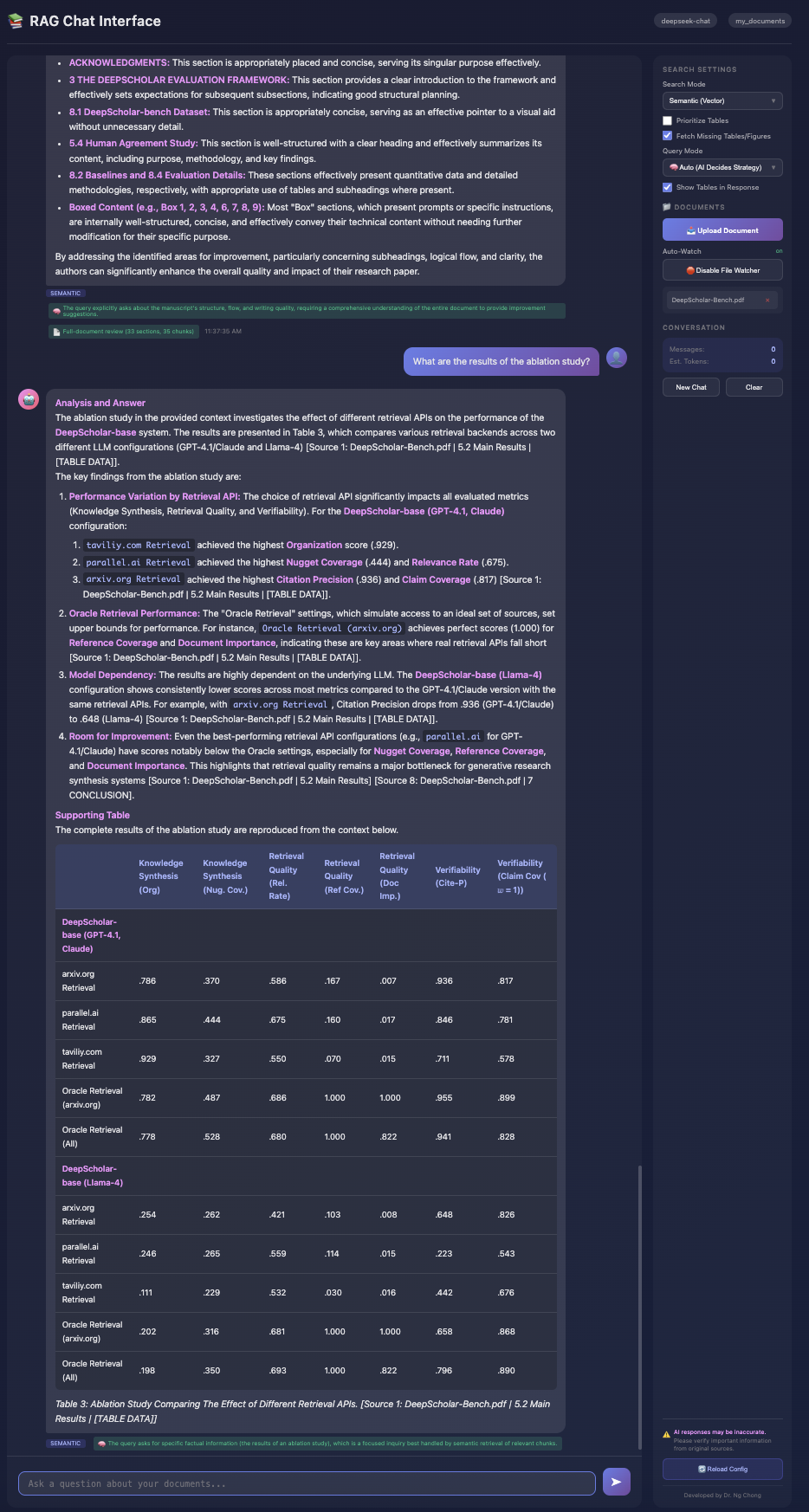
Interface Options
🔍 Search Mode
- Semantic: Vector-based conceptual search
- Keyword: Exact term matching with BM25
- Hybrid: Weighted combination of both
📊 Prioritize Tables
- Boosts table chunks in retrieval (3x score)
- Ensures at least 50% of results are tables
- Ideal for data-heavy queries
🤖 Agentic Mode
- Intelligently detects table/figure references
- Fetches missing tables automatically
- Boosts relevant existing content
🖥️ Show Tables
- On: Full table markdown in response
- Off: Tables analyzed but not shown
- Saves tokens when unchecked
API Endpoints
# === Chat Endpoints ===

# Create a new conversation
POST /api/conversations
Response: {"conversation_id": "uuid"}

# Send a chat message
POST /api/chat
Body: {
  "conversation_id": "uuid",
  "message": "Your question",
  "search_mode": "semantic",       # semantic|keyword|hybrid
  "prioritize_tables": true,
  "agentic_mode": true,
  "include_table_content": true,  # NEW: show tables in response
  "stream": true
}

# Get conversation history
GET /api/conversations/{conversation_id}

# === Document Management Endpoints ===

# Upload a document
POST /api/documents/upload
Content-Type: multipart/form-data
Response: {"task_id": "uuid", "filename": "doc.pdf", "status": "pending"}

# Get ingestion status
GET /api/documents/status/{task_id}
Response: {"status": "completed", "chunks_indexed": 45, ...}

# List all documents
GET /api/documents
Response: {"documents": [{"name": "doc.pdf", "path": "...", ...}]}

# Delete a document
DELETE /api/documents/{path}

# Reindex all documents (clears and rebuilds vector database)
POST /api/documents/reindex
Response: {
  "status": "started",
  "message": "Reindexing started in background",
  "note": "Use /api/documents/status/ to track progress"
}

# === File Watcher Endpoints ===

# Get watcher status (includes last event)
GET /api/watcher
Response: {
  "enabled": true,
  "folder": "./docs",
  "pattern": "*",  # Watches all files, filters by extension
  "last_event": {  # Most recent file change event
    "type": "added",
    "data": {"file_path": "doc.pdf", "chunks_indexed": 45},
    "timestamp": "2026-01-03T12:34:56"
  }
}

# Start file watcher
POST /api/watcher/start
Body: {"check_interval": 10.0, "debounce_interval": 2.0}
Response: {"status": "started", "enabled": true, "folder": "./docs"}

# Stop file watcher
POST /api/watcher/stop

# Note: File watcher supports PDF, MD, HTML, DOCX, TXT
# Unsupported extensions are automatically skipped

# === Configuration ===

# Get current configuration
GET /api/config
Response: {
  "embedding_model": "...",
  "llm_provider": "anthropic",
  "llm_model": "claude-sonnet-4-5",
  "collection_name": "my_documents",
  "available_search_modes": ["semantic", "keyword", "hybrid"]
}
17 Complete Example
End-to-end pipeline in a few lines of code
Example 1: PDF-Only Pipeline
from rag_ingestion import ingest_pdfs
from rag_library import query_rag

# Step 1: Ingest all PDFs from a directory
print("Ingesting documents...")
results = ingest_pdfs(
    directory="./pdfs",
    collection_name="research_papers",
    pattern="*.pdf"
)

for r in results:
    print(f"  {r['file_path']}: {r['status']} ({r['chunks_indexed']} chunks)")

# Step 2: Query the documents
print("\nQuerying documents...")
result = query_rag(
    "What are the main findings across all papers?",
    collection_name="research_papers",
    db_path="./qdrant_db",
    retrieve_n=50,
    rerank_top_k=10,
    agentic=True
)

print(f"\nAnswer:\n{result['answer']}")

# Step 3: Show sources
print(f"\nSources ({len(result['sources'])}):")
for i, s in enumerate(result['sources'], 1):
    marker = "📊" if s.get('is_table') else "📄"
    print(f"  {i}. {marker} {s.get('file_name')} - {s.get('heading')})
Example 2: Multi-Format Directory Pipeline
Parse and ingest a directory containing PDFs, Markdown, HTML, DOCX, and text files. The system automatically detects formats and handles each appropriately.
from pathlib import Path
from rag_ingestion import RAGIngestor, VectorDBConfig
from rag_library import query_rag

# Step 1: Set up ingestor with multi-format support
db_config = VectorDBConfig(
    collection_name="multi_format_docs",
    path="./qdrant_db"
)
ingestor = RAGIngestor(db_config=db_config)

# Step 2: Define directory with mixed formats
docs_dir = Path("./documents")

# Step 3: Ingest all supported formats
print("Ingesting multi-format documents...")

# Supported extensions: .pdf, .md, .markdown, .html, .htm, .docx, .txt
supported_extensions = [".pdf", ".md", ".html", ".docx", ".txt"]

results = []
for ext in supported_extensions:
    for file_path in docs_dir.glob(f"*{ext}"):
        try:
            result = ingestor.ingest_file(file_path)
            results.append(result)
            print(f"  ✓ {file_path.name}: {result['status']} ({result['chunks_indexed']} chunks, {result['num_tables']} tables)")
        except Exception as e:
            print(f"  ✗ {file_path.name}: {e}")

# Step 4: Query across all formats
print("\nQuerying multi-format collection...")
result = query_rag(
    "What are the main findings across all documents?",
    collection_name="multi_format_docs",
    db_path="./qdrant_db",
    retrieve_n=30,
    rerank_top_k=10,
    agentic=True,
    verbose=True
)

print(f"\nAnswer:\n{result['answer']}")

# Step 5: Show sources with format indicators
print(f"\nSources ({len(result['sources'])}):")
for i, s in enumerate(result['sources'], 1):
    # Determine icon based on content type
    if s.get('is_table'):
        icon = "📊"
    elif s.get('is_figure'):
        icon = "🖼️"
    else:
        icon = "📄"

    # Get file extension for format indicator
    file_name = s.get('file_name', "Unknown")
    ext = Path(file_name).suffix.upper() if '.' in file_name else "TXT"

    print(f"  {i}. {icon} [{ext}] {file_name} - {s.get('heading', 'N/A')})
Example 3: Using ragexample.py for Multi-Format
The bundled ragexample.py script also supports multi-format ingestion:
# Put documents (PDF, MD, HTML, DOCX, TXT) in ./documents folder
# Then run:

# Ingest all supported formats
python ragexample.py --ingest

# Query with agentic AI (auto-detects optimal strategy)
python ragexample.py "What are the main findings?"

# The agent evaluates query intent and selects appropriate mode